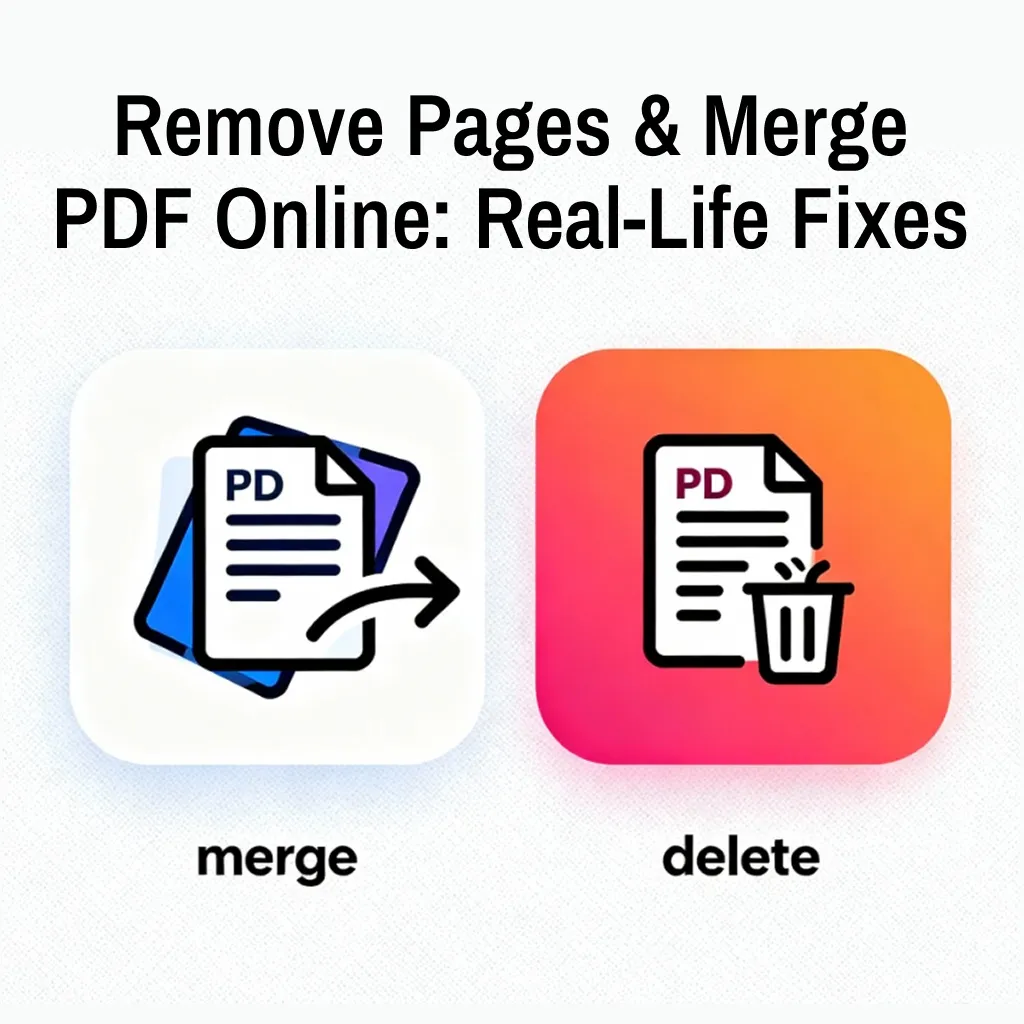
Ever tried to send a PDF, only to realize it’s packed with pages you just don’t need? Or maybe you’ve found yourself staring at five different PDFs wishing you could just smush them into one neat file. Trust me, you’re not alone. I had the same problem last week when I was prepping documents for a job application. The panic of cleaning up files is real!
If you’ve run into these issues, let’s talk about a super easy way to remove pages from a PDF and merge files-all online, right from your browser. No downloads, no tech headache.
Why Do PDFs Drive Us Crazy?
How many times have you received a huge PDF with info all over the place? Sometimes it’s work stuff, sometimes it’s college notes, or maybe reports from your accountant. PDFs are great because they look polished on any computer-but editing them? Oof, it can feel like trying to unlock a safe with random numbers.
Raise your hand if you’ve googled “How do I delete a page from a PDF?” and gotten six complicated answers. There’s got to be a better way, right?
My Accidental PDF Adventure
I found myself stuck with a stack of scanned PDFs after a parent-teacher meeting. Since there was no way I was sending 30 pages to my kid’s school group, I started hunting for an online fix. That’s when I stumbled on PathGyan’s PDF merge and split online.
It was a total game change! Here’s how the process worked for me.
How I Edited My PDF-No Tech Degree Needed
- Hit up the website: PathGyan PDF Tool.
- Uploaded my messy PDF.
- The screen showed a preview of every page so I could click and delete whatever I didn’t want-super easy.
- Then I downloaded the cleaned-up file, ready to share with everyone.
No passwords, no complicated directions. I did it while sipping chai!
How to Merge PDFs When You’re Drowning in Files
Let’s say you have medical reports from five doctors, or receipts from your last shopping spree. Juggling so many files is rough. Here’s the quick merge trick:
- On the PathGyan tool, hit the “Merge PDF” option.
- Click to upload as many files as you want.
- Drag them into the order you need-the preview helps so you don’t miss a page.
- Click “Merge” and boom: One clean, tidy PDF!
Perfect for sending bills, portfolios, or even holiday stories to family and friends.
What Makes Online PDF Fixes So Useful?
Here’s why I switched to online tools:
- No software installation. My laptop’s hard drive is happier!
- Fast and free. Honestly, who wants to pay for basic file edits?
- Works on any device-you can merge files on your phone during a commute.
You get all the editing power, minus the tech jargon or confusing settings.
The question on everyone’s mind: Are my documents safe online? I checked, and PathGyan deletes files from their server after processing. That means your homework or confidential docs aren’t floating around the internet for eternity.
Plus, since it’s browser-based, the site just works wherever you are-no risk of malware.
Tips From My Desk (or Kitchen Table)
- Name your files clearly—trust me, “final_report_last_edit_really.pdf” gets messy.
- Remove empty and duplicate pages before combining. Saves you from embarrassing “blank” files.
- Store your merged PDFs in the cloud, so you can grab them anytime-even late at night.
Who Needs This Most?
- Students: Combine notes from different classes or remove random blank pages.
- Teachers: Clean up worksheets and send merged study packs.
- Businesses: Create neat reports, merge contracts, send one professional file.
- Job Seekers: Share certifications and resumes in one smooth document.
Literally anyone who’s tired of PDF chaos will appreciate these easy fixes.
Final Thoughts
Life’s too short to wrestle with clumsy PDFs. Next time you need to chop, combine, or tidy up a document, remember that you’ve got free tools like PathGyan to make it smooth. I went from frustrated to sorted in just five minutes-maybe you will too.
Give it a try next time your PDFs are driving you up the wall!